

Dell PowerEdge Servers – Support for very large drives (>2 TB) Introduction
Progress is a wonderful thing, but in computers, progress provides both new features and also exposes new challenges. Hard drive manufacturers will soon introduce single hard drives that exceed 2 Terabytes in size. While RAID arrays have been able to exceed 2 Terabytes for some time, this is the first time an individual hard drive has broken through this important threshold. Dell will soon ship 3 TB drives and drive sizes beyond that are planned.
What does this mean? If you install these drives, you may experience the following:
Unfortunately, you may or may not see any errors associated with the above. This is a guide to using the full capacity of these new hard drives and avoiding common errors.
>2 Terabyte Drives and Beyond – Using All That Space
The ability to use the full capacity of these drives is dependent on the factors listed below –
All three play a part in being able to fully utilize >2TB drives.
BIOS Support –
BIOS can now be characterized as either BIOS Mode (commonly called “legacy” BIOS – uses MBR) or UEFI Mode (GPT partitioning).
Primary Boot Drive – Boot to a drive:
Secondary drive –
Dell PowerEdge 11G and future servers provide the capability for both (BIOS mode & UEFI) via BIOS settings. At some point in the future, Dell PowerEdge servers will likely fully transition to UEFI as the only mode, but this will be many years.
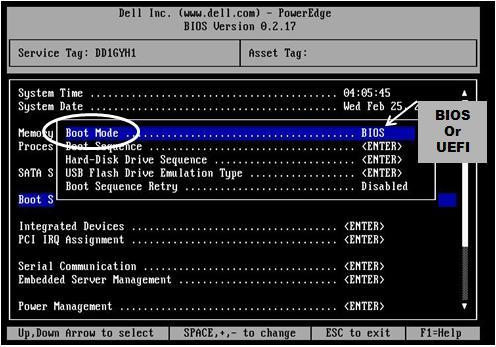
In BIOS setup, under Boot Sequence, the Boot mode field can be toggled between BIOS, as shown below (legacy BIOS/MBR) or UEFI*.
*Caution – toggling this BIOS setting can render the system unbootable until the BIOS is set back to the original setting. In addition, attempting to install Windows in UEFI mode to a drive with a Master Boot Record(MBR) will require the drive be either initialized in the H200, H700, H800 firmware, or use Microsoft Diskpart to wipe the drive before proceeding with an install.
MBR – 2 Terabyte limit, four partitions
UEFI – more partitions and much larger partition size
Operating System Support
Microsoft
Dell PERC H700 and H800 –
Dell H200 – Support is planned for the H200 in 2011
Methods for using the entire drive under Windows and Linux with MBR/Legacy BIOS –
The one sure method (applicable to all OS) for completely using a drive larger than 2TB under MBR (Legacy BIOS mode) is to create multiple Virtual Disks using the storage/raid controller firmware setup, to divide the drive into disks of less than 2 terabytes.
Linux has some capability, depending on the version, to use a drive up to 3.99 TB as previously noted.
Progress is a wonderful thing, but in computers, progress provides both new features and also exposes new challenges. Hard drive manufacturers will soon introduce single hard drives that exceed 2 Terabytes in size. While RAID arrays have been able to exceed 2 Terabytes for some time, this is the first time an individual hard drive has broken through this important threshold. Dell will soon ship 3 TB drives and drive sizes beyond that are planned.
What does this mean? If you install these drives, you may experience the following:
· You can’t install the OS unless you create a partition size less than 2 TB.
· You may only see 2 TB total and cannot use the rest of the drive.
· You may even see a drive capacity less than the actual drive capacity.
· You may have to use the hard drive controller firmware to create virtual drives less than 2 TB.
Unfortunately, you may or may not see any errors associated with the above. This is a guide to using the full capacity of these new hard drives and avoiding common errors.
>2 Terabyte Drives and Beyond – Using All That Space
The ability to use the full capacity of these drives is dependent on the factors listed below –
· BIOS capability
· Storage Controller firmware
· Operating System
All three play a part in being able to fully utilize >2TB drives.
BIOS Support –
BIOS can now be characterized as either BIOS Mode (commonly called “legacy” BIOS – uses MBR) or UEFI Mode (GPT partitioning).
Primary Boot Drive – Boot to a drive:
· Legacy BIOS mode = MBR partition required
· UEFI BIOS mode = GPT partition required for Windows (some Linux versions support GPT boot under legacy BIOS with hybrid MBR)
Secondary drive –
If BIOS is in Legacy or UEFI mode – a secondary hard drive can be either MBR or GPT formatted, depending on the OS version.
Dell PowerEdge 11G and future servers provide the capability for both (BIOS mode & UEFI) via BIOS settings. At some point in the future, Dell PowerEdge servers will likely fully transition to UEFI as the only mode, but this will be many years.
In BIOS setup, under Boot Sequence, the Boot mode field can be toggled between BIOS, as shown below (legacy BIOS/MBR) or UEFI*.
*Caution – toggling this BIOS setting can render the system unbootable until the BIOS is set back to the original setting. In addition, attempting to install Windows in UEFI mode to a drive with a Master Boot Record(MBR) will require the drive be either initialized in the H200, H700, H800 firmware, or use Microsoft Diskpart to wipe the drive before proceeding with an install.
MBR – 2 Terabyte limit, four partitions
2 Terabytes is 2,199,023,255,552 Bytes = 2^32 sectors * 512 bytes/sector. When installing an OS, you will be limited to partitions of ~ 2048 GB (2 TB) and sometimes smaller.
MBR also limits the total number of primary partitions to 4.
UEFI – more partitions and much larger partition size
UEFI is the successor to the legacy BIOS, with more robust features and capabilities and for storage devices, some important differentiators and enhancements via GPT partitioning.
GPT uses 64-bit values to describe partitions. In theory, this means a maximum partition size of 2^64 (2 to power 64), though there are limitations within various OS that may constrain this (Windows limits the maximum raw partition to 18 Exabytes and Windows file systems currently are limited to 256 Terabytes each. Also, in theory, GPT has no limit on the number of partitions, but this is practically limited at the OS level. For example, Windows caps this at 128 partitions.
In UEFI mode, Microsoft Windows 2008 and 2008R2 will simply install normally, with no difference to the end user, except that it will create a new partition during install (ESP – EFI System Partition) and will automatically use GPT for partitioning.
A good primer on UEFI and GPT - http://www.uefi.org/learning_center/UEFI_MBR_Limits_v2.pdf
Operating System Support
Microsoft
MBR – Microsoft OS are all limited to a maximum capacity of ~2 TB when the BIOS is set to legacy BIOS boot mode and MBR is used to partition the drive. There may be some errors unless the partition is smaller than 2 TB in size. The best way to use the entire drive under MBR mode is to partition the hard drive using the storage/raid controller firmware.
UEFI - Windows Server 2008 X64 was the first Windows OS to offer UEFI support. This also means, by extension, GPT boot support. Drives over 2 TB can only be used as a boot drive (UEFI/GPT) under Windows Server 2008 X64 and newer (2008R2).
Installation note: In Windows Server 2008, if you try to explicitly create partitions once the drive is selected, vs clicking “next”, you will get an error. Simply click “next” and the hard drive will be partitioned and formatted correctly - this is an error in the installer for Windows Server 2008. See - http://support.microsoft.com/kb/971576 for more information.
GPT – You can use a large capacity drive with a GPT partition as a DATA drive in Windows Server 2003 SP1 and newer operating systems. BOOT drive support is in Windows Server 2008 X64 and newer operating systems (that support UEFI mode) as noted above.Linux/Unix/Vmware support
Windows support for GPT is covered in the following FAQ – http://www.microsoft.com/whdc/device/storage/gpt_faq.mspx
Another great link describing the 2 TB limit is here:
http://blogs.technet.com/b/askcore/archive/2010/02/18/understanding-the-2-tb-limit-in-windows-storage.aspx
Hard Drive Controllers –
Support varies across different versions of Linux. Verify with your Linux vendor if the version you are using has adequate support.
VMWare ESX has some specific limitations at 2 TB: ESX does not support 2 terabyte LUN sizes
Key Criteria in determining what Linux/Unix platforms support large (>2TB) drives:
1) Does the server have UEFI support? Dell PowerEdge 11G and beyond all support UEFI.MBR – Linux behavior differs from Microsoft in that (depending on the Linux version) you can create multiple MBR partitions that can consume a large drive (up to a maximum of ~ 4 TB). Under Linux, to consume the entire (up-to-4TB) drive, the user has to create at least two partitions (MBR maximum of 4 primary partitions).
2) Does the OS and boot loader support UEFI boot?
3) Can the OS use the whole > 2TB drive in the Legacy BIOS mode, if the system/OS has no UEFI support?
4) Can the OS use 3TB drive as secondary storage disk?
UEFI – If the Linux version has the capability to boot UEFI, then the entire drive can be set up as a boot drive and the OS will see the entire drive. GPT - Linux can generally set up a GPT partition and use the entire drive in all but a few instances (VMware ESX versions are not GPT-aware – see chart).
1) First partition starting at the first possible sector and of SIZE slightly less than 2048GB (maybe 4-5 GB less).
2) The second partition can start off where the first partition ended and cover the rest of the disk (upto 3.999TB).
IMPORTANT NOTE! Only the Dell H700 and H800 currently support the 3TB drives (H200 will add support later this year) - NO earlier controllers, such as the PERC4/5/6, SAS5/6 (or ANY other Dell controller not mentioned) have this support and in some cases, even though you may be able to see the drive, this has NOT been tested or validated, so possible data loss could be experienced. ONLY use the Dell H700 and H800 with the proper firmware to ensure a tested and validated >2TB solution! For non-Dell controllers, contact the controller vendor for their support statement on >2TB drives.Hard drive controllers, such as the Dell PERC and SAS controllers, have firmware that needs to provide support for >2TB drives. Dell supports these large hard drives on the Dell PERC H700 and H800 and soon, the H200 controller at a later date. In addition, firmware support is also specific to the type of drive – SAS or SATA. Dell H700/800 and H200(at a later date) will only support SAS drives.
Dell PERC H700 and H800 –
The following firmware revision (or later) must be applied on the Storage Controller Cards to obtain support for >2 TB drives. The firmware release numbers and revisions are below:
For SAS drives >2TB: 7.1 FW A02/12.3.0-0032
R269683 – H800; A02 ( listed as DELL_PERC-H800-ADAPTER_XX_XXXXXXX.exe at the below download link)
R269684 – H700I: A02 ( listed as DELL_PERC-H700-INTEGRATED_XX_XXXXXXX.exe at the below download link)
R269685 – H700A; A02 ( listed as DELL_PERC-H700-ADAPTER_XX_XXXXXXX.exe at the below download link)
R269686 – H700M; A02 ( listed as DELL_PERC-H700-MODULAR_XX_XXXXXXX.exe at the below download link)
The above mentioned releases of firmware can be downloaded from http://ftp.us.dell.com/sas-raid/.
Dell H200 – Support is planned for the H200 in 2011
Methods for using the entire drive under Windows and Linux with MBR/Legacy BIOS –
The one sure method (applicable to all OS) for completely using a drive larger than 2TB under MBR (Legacy BIOS mode) is to create multiple Virtual Disks using the storage/raid controller firmware setup, to divide the drive into disks of less than 2 terabytes.
Linux has some capability, depending on the version, to use a drive up to 3.99 TB as previously noted.
NOTE: At times, the 2TB limit is also referred to as 2.2TB. With 512-bytes as the sector size, and 32-bits to address a sector, the total number of bytes that can be address in an MBR partition is 2199023255552 bytes. If this number is divided by 1024*1024*1024*1024 to convert it into TB, you end up with 2TB. On the other hand, if the number is divided with 1000*1000*1000*1000 you end with 2.2TB.
OS Compatibility Matrix –
| Legend Codes | |||||
| OS install fails | |||||
| 1 | Cannot boot/install in UEFI mode | ||||
| 2 | Cannot create GPT partitions - OS not GPT-aware | ||||
| OS install requires specific workarounds to use the entire drive | |||||
| 3 | Use H200/H700/H800 Controller to create <2TB virtual drives to use entire drive | ||||
| 4 (Linux only) | Use Linux OS to manipulate partitions in the OS to use entire drive | ||||
| P | OS installs without error and entire drive can be used (OS is GPT aware) | ||||
|
Boot Drive | ||
| Operating System | MBR(BIOS) | GPT(UEFI) |
| Microsoft Windows 2008 x86, SP2 | 3 | 1 |
| Microsoft Windows 2008 x64, SP2 | 3 | P |
| Microsoft Windows 2008 R2 | 3 | P |
| SLES11 | 4 (Linux only) | P |
| ESX 4.1 Classic | 3 | 1 |
| ESX 4.1 Installable | 3 | 1 |
| ESX 4.0 U1 Classic | 3 | 1 |
| ESX 4.0 U1 Installable | 3 | 1 |
| SLES 10 SP3 | 3 | 1 |
| RHEL 5.5 | 3 | 1 |
| RHEL 4.8 | 3 | 1 |
| RHEL6 | 4 (Linux only) | P |
| Citrix Xenserver 5.6 | 3 | 1 |
| Ubuntu 10.10 | 3 | 1 |
| ESX/i 5.0 | P | P |
|
Secondary Data drive | ||
| Operating System | MBR | GPT |
| Microsoft Windows 2008 x86, SP2 | 3 | P |
| Microsoft Windows 2008 x64, SP2 | 3 | P |
| Microsoft Windows 2008 R2 | 3 | P |
| SLES11 | 4 (Linux only) | P |
| ESX 4.1 Classic | 3 | 2 |
| ESX 4.1 Installable | 3 | 2 |
| ESX 4.0 U1 Classic | 3 | 2 |
| ESX 4.0 U1 Installable | 3 | 2 |
| SLES 10 SP3 | 3 | P |
| RHEL 5.5 | 3 | P |
| RHEL 4.8 | 3 | P |
| RHEL6 | 4 (Linux only) | P |
| Citrix Xenserver 5.6 | 3 | P |
| Ubuntu 10.10 | 3 | P |
| ESX/i 5.0 |
n/a | P |
출처 : http://en.community.dell.com/techcenter/extras/w/wiki/2837.aspx


